
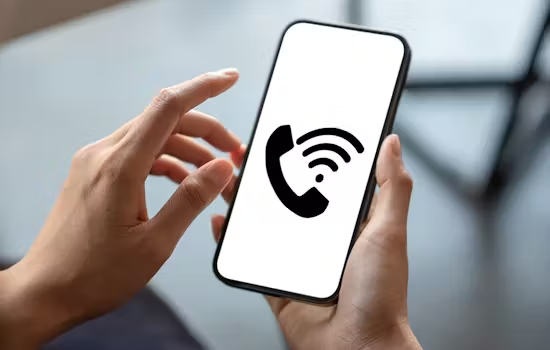
Have you ever wondered what is Wi-Fi calling and why it matters? In this article, we’ll explain what Wi-Fi calling is, how it works, the pros and cons, and how to set it up easily. We’ll also share some numbers to show how fast it’s growing, along with simple tips, quick links to related topics, and FAQs to clear up any confusion.
Understanding Wi-Fi calling matters today because so many of us face poor cell signal indoors, especially in remote or underground places. Wi-Fi calling helps fill that gap using your internet connection, so your calls don’t drop out and stay clear.
What Is Wi-Fi Calling?
Definition: Wi-Fi calling, also called VoWiFi—is a feature that lets you make and receive phone calls using a Wi-Fi network instead of relying on traditional cell towers.
How it’s different from regular mobile calling:
- Cellular calls go through towers.
- Wi-Fi calling sends your voice over Wi-Fi to your carrier, then routes it just like a regular call.
What you need:
- A supported device like modern iPhones (iPhone 5C or newer with iOS 8+), most Samsung Galaxy phones, Google Pixels, etc.
- A carrier plan that includes Wi-Fi calling.
- A decent Wi-Fi connection.
How Wi-Fi Calling Works
Wi-Fi calling works by routing your phone calls and text messages through a Wi-Fi network instead of a cellular network. When enabled, your mobile device detects available Wi-Fi and automatically uses it for voice and SMS traffic, especially in areas with weak or no cellular signal. The call data is transmitted over the internet to your carrier, which then connects it to the recipient’s phone. This process ensures clear, reliable communication indoors, in remote locations, or during network congestion, without requiring additional apps or services.
Benefits of Wi-Fi Calling
Wi-Fi calling offers several key benefits for mobile users. It improves call quality and reliability in areas with weak cellular signals, such as indoors or remote locations. By routing calls over Wi-Fi, it can help reduce dropped calls and maintain uninterrupted communication. Wi-Fi calling also allows users to stay connected without relying solely on their mobile network, which can be especially useful when traveling abroad or in areas with limited coverage. Additionally, it may help save on roaming charges and extend mobile service to locations that would otherwise have poor reception.
Disadvantages of Wi-Fi Calling
While Wi-Fi calling offers many advantages, it also has some drawbacks. Call quality depends on the strength and stability of the Wi-Fi network—poor connections can lead to dropped calls or audio delays. It may not work during internet outages, leaving you without service if the Wi-Fi goes down. Some emergency services may have limited location accuracy when using Wi-Fi calling, which can affect response times. Additionally, not all carriers or devices fully support Wi-Fi calling, and certain features like video calling or group calls may be restricted compared to traditional cellular networks.
Potential Drawbacks of Wi-Fi Calling
- Dropped calls if your Wi-Fi is weak or unstable.
- Data usage on some networks, though typically Wi-Fi calling uses minutes, not mobile data; always check with your provider.
- Security risks when using public Wi-Fi, calls might be encrypted, but public networks have more vulnerabilities.
How To Check Compatibility and Enable Wi-Fi Calling
To use Wi-Fi calling, you first need to ensure your device and carrier support it. Check your phone’s settings for a “Wi-Fi Calling” option—most modern smartphones, including iOS and Android devices, support it. Also, confirm that your mobile carrier offers Wi-Fi calling services, as availability may vary by region. Once confirmed, connect your phone to a stable Wi-Fi network, go to your settings, locate the Wi-Fi calling option, and toggle it on. After activation, your calls and texts will automatically use Wi-Fi when the cellular signal is weak, improving call quality and coverage.
How to Enable Wi-Fi Calling on Your Phone
For iPhone:
- Go to Settings > Phone.
- Tap Wi-Fi Calling.
- Turn it ON and confirm or update your emergency address.
For Android (may vary by model):
- Go to Settings > Network & internet or Connections.
- Tap Wi-Fi Calling.
- Enable it and set the emergency address.
Tips:
- Make sure your carrier supports Wi-Fi calling.
- If things don’t work, try restarting your phone, reconnecting Wi-Fi, or checking for system updates.
Wi-Fi Calling vs. Regular Cellular Calling
| Feature | Cellular Calling | Wi-Fi Calling |
|---|---|---|
| Network | Cell tower | Wi-Fi + Carrier backend |
| Dependency | Cell signal | Wi-Fi strength |
| Call Quality | Varies by area | Better indoors, if Wi-Fi is good |
| Cost | Depends on plan | Usually same as regular calls |
| Switching | No smart handoff | Automatic if set to “Wi-Fi preferred” |
Wi-Fi calling can offer better quality indoors and be cost-effective, but depends on Wi-Fi. Cellular is more predictable outdoors or during travel.
Wi-Fi Calling and International Calls
Using Wi-Fi calling while abroad can help you avoid roaming fees. As long as you’re connected to Wi-Fi and have a plan that supports it, calls usually ring through just like at home.
Tip: Confirm your provider’s policy on international Wi-Fi calling, some destinations or countries may have restrictions or charges.
Security & Privacy in Wi-Fi Calling
Calls are usually encrypted between your phone and carrier, so they’re fairly safe. But on public Wi-Fi, there’s always some risk. Only use trusted networks if you’re sharing personal or sensitive info.
Some users note that enabling Wi-Fi calling gives providers more info about your online activity, so be mindful of permissions and locations shared.
Common Myths About Wi-Fi Calling
- “It uses too much data.”
Not usually, it mostly uses minutes and minimal Wi-Fi bandwidth. - “It’s the same as VoIP apps.”
Not quite, Wi-Fi calling uses your dialer and number, while VoIP apps need downloads and may use different contacts. - “It drains battery faster.”
Mixed, if your cell signal is poor, Wi-Fi calling may use less battery. But constant Wi-Fi does burn more power .
When Should You Use Wi-Fi Calling?
You should use Wi-Fi calling whenever your cellular signal is weak or unreliable, such as indoors, in basements, remote areas, or crowded places where networks are congested. It is also helpful when traveling abroad to stay connected without incurring high roaming charges. Additionally, Wi-Fi calling can improve call clarity and reduce dropped calls in areas with stable internet but poor mobile coverage. Essentially, anytime your mobile network struggles, Wi-Fi calling ensures uninterrupted communication using a reliable internet connection.
FAQs
1. Is Wi-Fi calling free?
Mostly yes, it uses your existing calling plan and Wi-Fi. You don’t pay extra unless your carrier has special fees.
2. Does Wi-Fi calling work without mobile data?
Yes. It uses Wi-Fi, not mobile data, and counts as a regular call.
3. Will Wi-Fi calling work in airplane mode?
Yes, if you turn on Wi-Fi manually while in airplane mode and your carrier allows it.
4. Does Wi-Fi calling affect battery life?
It depends. It might save battery if cell signal is poor, but running Wi-Fi constantly can consume more power.
5. Can Wi-Fi calling work on any Wi-Fi network?
Most home networks work fine. Public Wi-Fi may work too, but some networks block VoIP or have firewalls. Go with secure, reliable Wi-Fi when possible.
6. Can Wi-Fi calling completely replace mobile signal in rural areas?
Not completely. Wi-Fi calling can help in rural areas if you have a stable internet connection, but you’ll still need mobile signal when Wi-Fi isn’t available.
7. Does Wi-Fi calling work in underground locations like basements or subways?
Yes, Wi-Fi calling can work in basements or subways as long as there’s a strong and stable Wi-Fi connection, even if there’s no mobile signal.
8. How does Wi-Fi calling maintain call quality when cell signal is weak?
Wi-Fi calling keeps call quality high by routing your voice over a stable internet connection instead of relying on weak cell towers. This reduces dropouts, delays, and static, as long as the Wi-Fi signal is strong and consistent.
9. How do I do Wi-Fi calling on my phone?
To use Wi-Fi calling, go to your phone’s settings, look for “Wi-Fi Calling”, and enable it. Make sure you are connected to a Wi-Fi network. Once activated, your calls and texts will automatically use Wi-Fi when cellular signals are weak.
10. How to use Wi-Fi calling in the Philippines?
In the Philippines, most major carriers like Globe and Smart support Wi-Fi calling. Enable it in your phone’s settings, ensure you have an active Wi-Fi connection, and you’re ready to make calls. Charges usually follow your standard plan, but Wi-Fi calling can help reduce dropped calls in low-signal areas.
11. What is Wi-Fi calling on my mobile phone?
Wi-Fi calling on a mobile phone lets you make voice calls and send SMS messages over a Wi-Fi network instead of relying solely on your cellular signal. It improves call quality, extends coverage indoors, and helps maintain connectivity in areas with weak mobile reception.
12. Is Wi-Fi calling safe?
Yes, Wi-Fi calling is generally safe, especially when used on a secure and trusted Wi-Fi network. Calls and texts are encrypted between your device and your mobile carrier, protecting your communications from eavesdropping. However, using public or unsecured Wi-Fi networks can expose your data to potential risks, such as hacking or interception.
Disclaimer
This article is for general information only. Each carrier and device may have different terms, features, or fees. Always check your provider’s specific policy and terms before enabling or relying on Wi-Fi calling.