
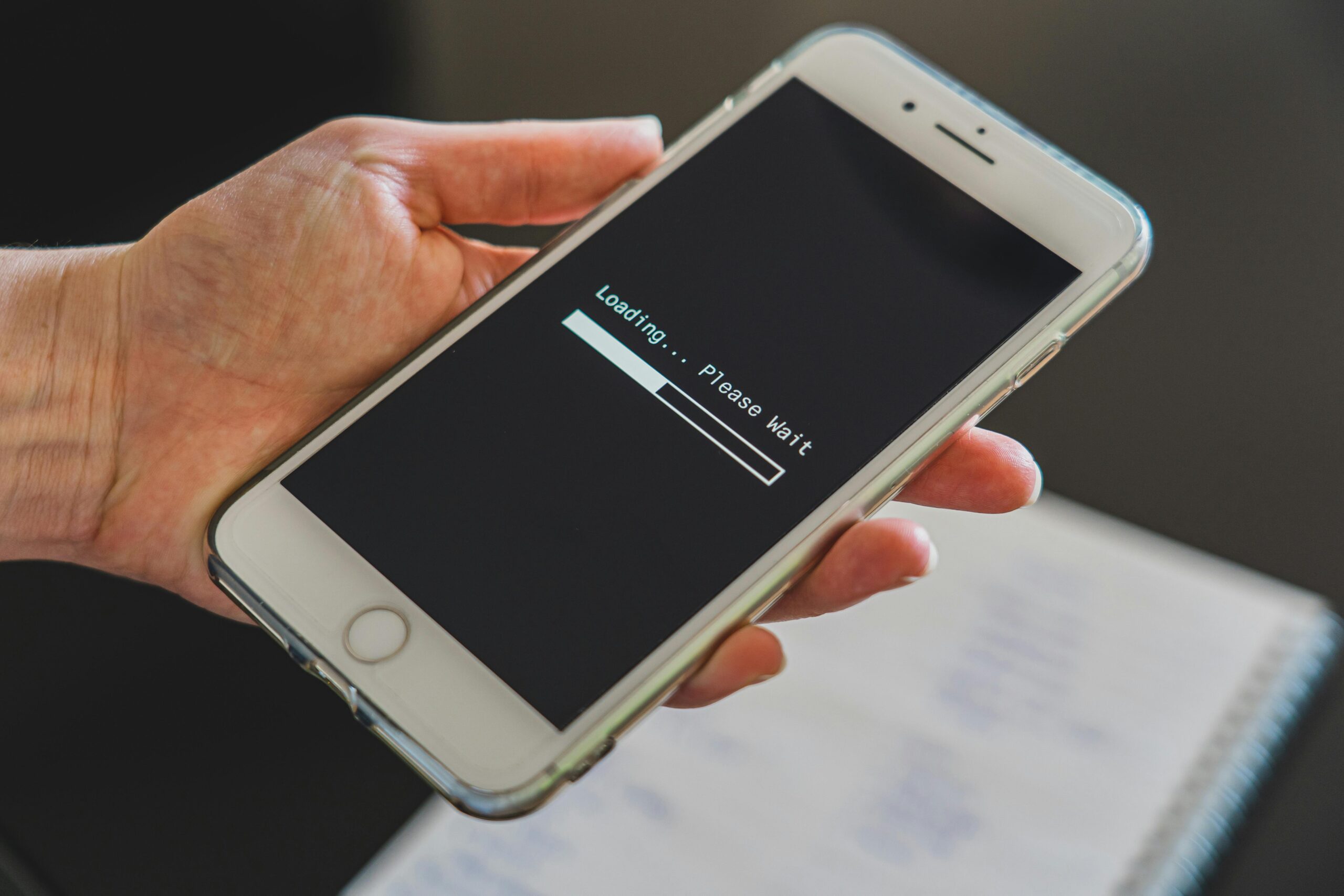
A mobile hotspot turns your phone or device into a little Wi‑Fi station. It uses your cellular data to create a personal wireless network that others can connect to. Think of it as carrying Wi‑Fi wherever you go without needing fixed routers or public networks.
- Why it’s useful today: We’re always online working, streaming, or studying. A mobile hotspot keeps you connected, even when café Wi‑Fi is spotty or unavailable.
- How it works: Your device taps into cellular 4G or 5G, then broadcasts a Wi‑Fi signal. Nearby gadgets can hop on, just like any regular Wi‑Fi.
How Mobile Hotspots Work
- Smartphone or tablet as hotspot: Most iPhones and Androids let you turn on “Personal Hotspot” or “Tethering,” turning your device into a mini-router.
- What tethering means: Tethering is sharing your device’s data via Wi‑Fi, USB, or Bluetooth. Wi‑Fi is easiest; USB is fastest and more secure.
- Built-in vs dedicated hotspot device:
- Built‑in: Quick and free—just activate on your phone.
- Dedicated device: Portable (MiFi or Jetpack), often has bigger battery and better range—great for frequent travelers or remote work.
Benefits of Using a Mobile Hotspot
- Internet access anywhere
As long as there’s cell coverage, you’re online no relying on coffee shop Wi‑Fi. - Portable and convenient
Hotspots travel with you from airports to train rides. - Safer than public Wi‑Fi
Public networks are risky. Your hotspot is private and often encrypted. - Multiple devices at once
Need to connect a laptop, tablet, and phone? No problem a hotspot handles it. - Stable, even in emergencies
Unlike Wi‑Fi tied to power, a hotspot works if your home network fails or there’s a blackout. - Cost-effective flexibility
Choose pay as you go or add-on plans no long-term commitments. Works out cheaper than paying café Wi‑Fi or roaming fees.
Devices That Can Be Used as Mobile Hotspots
- Smartphones (iOS and Android) – Built into settings, easy setup.
- Tablets – Some let you share data just like phones.
- Dedicated hotspot devices – Designed solely for Wi‑Fi sharing; better battery and signal.
- Laptops with LTE – Some laptops directly use SIM cards or attach via USB to tether from your phone.
Setting Up a Mobile Hotspot: Step‑by‑Step
On iPhone:
- Go to Settings → Personal Hotspot
- Switch Allow Others to Join on
- Set Wi‑Fi password
- Connect other devices via Wi‑Fi list
On Android:
- Go to Settings → Network & Internet → Hotspot & Tethering
- Tap Mobile Hotspot
- Pick a name and secure password
- Save and share with your devices
Pro Tips:
- Always set a strong password.
- Monitor data usage via your settings or carrier app to avoid overage.
- Manage connected devices—kick off unknown ones using settings.
Mobile Hotspot Plans and Data Usage
Mobile hotspot plans vary depending on your provider and data needs, so it’s important to choose one that fits your usage. Plans may offer daily, monthly, or unlimited data options, with speed caps or throttling after certain thresholds. Monitoring your data usage is essential, as activities like streaming, online gaming, or video conferencing can quickly consume large amounts of data. Many providers offer usage alerts or apps to help track consumption and avoid overage charges. By selecting the right plan and managing your data effectively, you can ensure reliable hotspot access without unexpected costs.
Tips to Maximize Mobile Hotspot Performance
To get the best performance from your mobile hotspot, place it in a central, elevated location with strong cellular signal and minimal interference. Connect only the devices you need to avoid bandwidth congestion, and use 5G or 4G LTE networks whenever possible for faster speeds. Keep the hotspot charged or plugged in, update its firmware regularly, and choose the appropriate Wi-Fi band—2.4 GHz for wider coverage, 5 GHz for higher speed. Minimizing heavy simultaneous usage, like large downloads or 4K streaming, will also help maintain a stable and reliable connection.
Security Tips for Mobile Hotspots
To maximize mobile hotspot performance, start by placing your device in a central location with a strong cellular signal and away from obstructions or electronic interference. Limit the number of connected devices to avoid bandwidth congestion, and prioritize high-speed networks like 4G LTE or 5G for faster and more stable connections. Keep your hotspot device charged or connected to a power source, and regularly update its firmware for optimal performance and security. Using Wi-Fi band selection (2.4 GHz for range, 5 GHz for speed) and minimizing simultaneous heavy usage like streaming or large downloads can also help maintain consistent speeds. These steps ensure that your mobile hotspot delivers reliable, fast, and efficient internet access wherever you are.
When to Use a Mobile Hotspot (And When Not To)
Perfect for:
- Remote work in cafés or while traveling.
- As a backup during internet outages.
- Group work on the move (e.g., road trips, study groups).
Not ideal for:
- Gaming or streaming HD for long periods—too much data.
- Fixed internet replacement—usually expensive in the long run.
- Locations with weak cellular signal—consider public Wi‑Fi (carefully) or a dedicated antenna.
Troubleshooting Common Mobile Hotspot Issues
| Problem | Try This First |
|---|---|
| Hotspot won’t connect | Restart devices, check the password |
| Devices can’t find hotspot | Toggle hotspot off and on, refresh Wi‑Fi |
| Slow speeds | Move to better signal, limit users |
| Out of data | Check your plan balance, consider a top-up or switch plan |
Alternatives to Mobile Hotspots
- Public Wi‑Fi: Common in cafés and libraries but often slow and risky. Always use VPN if you must.
- Portable routers: Handy for travel, especially with local SIM cards.
- Offline apps: Download maps, videos, or documents before heading out to reduce data demands.
Conclusion
A mobile hotspot is a game-changer for staying connected portable, private, and reliable. Whether you’re working from a café, traveling, or just avoiding sketchy public Wi‑Fi, it’s the smart way to go online on your terms.
FAQs: Mobile Hotspot Guide
1. What’s a mobile hotspot?
A feature that lets your device (like a phone or hotspot gadget) share its mobile data as Wi‑Fi for other devices.
2. Is tethering the same as hotspot?
Yes. Tethering is just the techie way of saying you share your device’s internet (via Wi‑Fi, USB, or Bluetooth)
3. How many devices can connect at once?
Usually up to 10, depending on your phone or hotspot device.
4. Does using a hotspot drain battery fast?
Yes, especially on phones. Use USB tethering or a power bank to help.
5. Is it safe to use a hotspot?
Much safer than public Wi‑Fi. Use a password and optional VPN for extra protection.
6. What to look for in a hotspot plan?
Prioritize data limits, speed caps (throttling), and whether tethering is included or charged extra.
7. Does using a mobile hotspot use my data?
Yes. A mobile hotspot uses your phone’s cellular data plan. Streaming, downloads, and browsing will count toward your data limit.
8. Can I connect more than one device to my hotspot?
Yes. Most phones allow you to connect up to 5–10 devices at once, depending on the model and your carrier’s restrictions.
9. Can I use my mobile hotspot while traveling abroad?
Yes, but roaming charges may apply. Check with your carrier for international hotspot plans or use a local SIM card.
10. Why is my mobile hotspot slow?
Poor signal strength, too many connected devices, or reaching your data limit can slow down speeds. Try moving to a better coverage area.
11. What is the difference between Wi-Fi and a hotspot?
Wi-Fi is a wireless network technology that allows devices to connect to the internet through a router or access point, usually at home, office, or public places. A mobile hotspot, on the other hand, shares your phone’s cellular data connection as a Wi-Fi network, letting other devices connect to the internet wherever there’s cellular coverage. Essentially, Wi-Fi is the network type, while a hotspot is a portable way to create a Wi-Fi network using cellular data.
12. How can I use my phone as a mobile hotspot?
To use your phone as a hotspot, go to your phone’s settings, find “Mobile Hotspot” or “Personal Hotspot”, and turn it on. Set a network name (SSID) and password for security, then connect your other devices to this Wi-Fi network. Make sure your mobile data is active, and monitor usage to avoid exceeding your data plan limits.
Disclaimer
This guide is for general information only. Always check with your mobile carrier for data plan terms, usage rates, and limitations before using a mobile hotspot.



Thank you for your sharing. I am worried that I lack creative ideas. It is your article that makes me full of hope. Thank you. But, I have a question, can you help me?