
A personal hotspot is one of the simplest ways to connect your laptop, tablet, or another phone to the internet when WiFi isn’t available. Whether you’re traveling, working remotely, or facing a home internet outage, your mobile hotspot can save the day.
In this complete guide, you’ll learn how a hotspot works, how to set it up on both iPhone and Android, how to secure it, and how to get the best performance from it.
Introduction to Personal Hotspots
What Is a Hotspot and How It Works?
A mobile hotspot turns your smartphone into a portable WiFi router. It uses your phone’s mobile data and broadcasts it as a wireless network. Other devices can connect to this network just like regular WiFi.
In simple terms:
Hotspot = Your phone’s data → shared with other devices.
Hotspots are also known as:
- Tethering
- Mobile WiFi sharing
- Phone hotspot
- Cellular hotspot
Benefits of Using Your Phone as a Hotspot
Using your hotspot gives you:
- Instant internet access anywhere with mobile signal
- No need for public WiFi (which may be unsafe)
- Convenience, especially during power outages
- Flexibility to work, stream, or browse on multiple devices
- Better control over who connects to your network
When You Might Need a Mobile Hotspot
You may rely on your hotspot when:
- Your home WiFi is down
- You’re working remotely from a café, beach, or outdoors
- You’re traveling and need quick access to the internet
- You need to share internet with a friend or coworker
- You want a backup internet solution
Requirements Before Setting Up a Hotspot
Before turning on your hotspot, check the following:
Compatible Devices
Almost all modern phones can create a hotspot, including:
- iPhones (iOS 10 and above)
- Samsung Galaxy, Pixel, Xiaomi, Oppo, Vivo, Huawei
- Any Android device with mobile data capability
Carrier/Data Plan Requirements
Some carriers require:
- A specific data plan
- Hotspot add-ons
- A minimum amount of mobile data available
Always check if your plan supports tethering/hotspot use.
Battery and Data Consumption Considerations
Hotspots can drain battery fast.
They also use more data than regular browsing.
To avoid unexpected charges:
- Monitor your data usage
- Keep a power bank nearby
- Turn off hotspot when not needed
How to Set Up a Hotspot on iPhone (iOS)
Follow these steps:
Step-by-Step Instructions (iPhone)
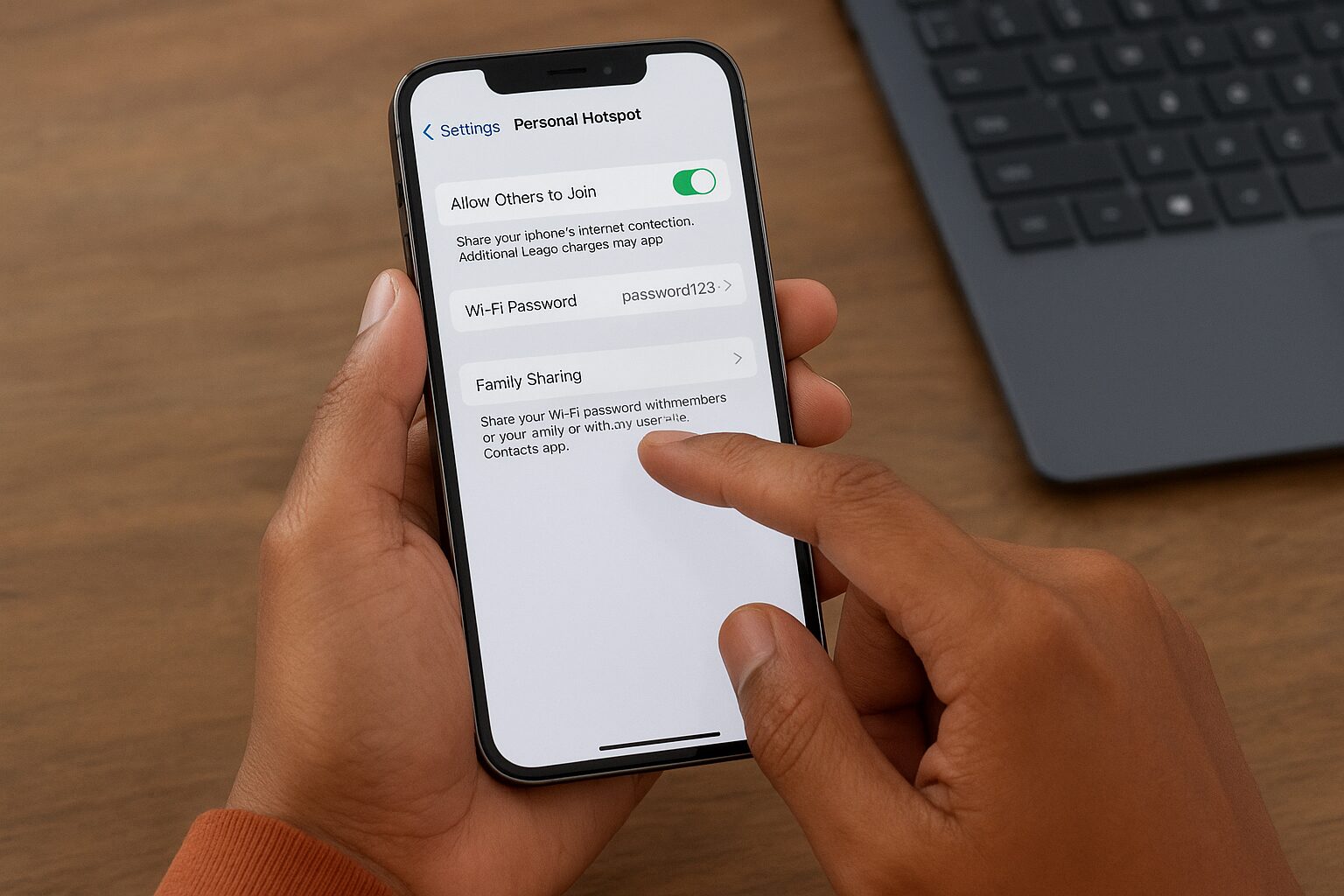
- Open Settings
- Tap Personal Hotspot
- Toggle Allow Others to Join
- Turn on Mobile Data
- Check the WiFi password shown on screen
Your iPhone hotspot is now active.
Changing Your Hotspot Name
- Go to Settings
- Tap General
- Tap About
- Tap Name
- Enter a new device name
This becomes your hotspot’s WiFi name.
Setting or Updating Your Hotspot Password
Inside Personal Hotspot, tap Wi-Fi Password
→ Enter a strong password (at least 8 characters)
Managing Hotspot Settings
Two useful options:
- Maximize Compatibility
Helps older devices connect, but may reduce speed. - Allow Others to Join
Turn this off to prevent unwanted users.
How to Set Up a Hotspot on Android Devices
Steps may vary by brand, but the process is similar.
Step-by-Step Instructions (Android)
- Open Settings
- Tap Connections or Network & Internet
- Tap Hotspot & Tethering
- Tap Wi-Fi Hotspot
- Toggle On
Your Android hotspot is ready.
Changing SSID (Hotspot Name) and Password
Inside Wi-Fi Hotspot:
- Tap Hotspot Name to rename
- Tap Password to create a stronger password
Use at least WPA2 or WPA3 if available.
Allowing or Restricting Connected Devices
You can:
- View who is connected
- Block specific devices
- Limit how many devices can join
This helps maintain speed and security.
Hotspot Auto-Disable Settings
Most Android phones turn off the hotspot automatically if:
- No device is connected
- Battery is low
You can change this in Hotspot settings → Timeout or Auto Disable.
Connecting Other Devices to Your Hotspot
Connecting is fast and easy.
How to Connect Laptops, Tablets, or Phones
- Open the WiFi settings on the device
- Look for your hotspot name (SSID)
- Tap the network
- Enter the password
- Enjoy the internet connection
Troubleshooting Connection Issues
If your device can’t connect:
- Check hotspot password again
- Turn hotspot off and back on
- Disable and re-enable WiFi
- Restart both devices
- Check if your data plan supports tethering
Tips to Improve Hotspot Connectivity
- Keep devices close to your phone
- Remove obstructions like bags or pockets
- Avoid using heavy apps while hosting hotspot
- Turn off Bluetooth if it interferes
Enhancing Hotspot Security
Securing a Wi-Fi hotspot is essential to protect your data and privacy. One of the first steps is to use strong, unique passwords for your hotspot to prevent unauthorized access. Enabling encryption protocols such as WPA3 or WPA2 ensures that data transmitted over the network is protected from eavesdropping.
It’s also important to limit device connections and regularly monitor who is connected to your hotspot. Turning off the hotspot when it’s not in use reduces exposure to potential attackers. Additionally, keeping your device’s software and firmware updated helps patch security vulnerabilities that hackers could exploit. By following these practices, you can maintain a safe and reliable hotspot for personal or business use.
Tips to Optimize Hotspot Performance
To get the best performance from your Wi-Fi hotspot, start by placing your device in a central, elevated location to improve signal coverage. Minimize physical obstructions like walls or large furniture that can weaken the signal. Limiting the number of connected devices can also help maintain faster speeds, as too many users can slow the network. Keep your hotspot software updated and close unnecessary apps that consume bandwidth.
For added stability, consider using a dedicated mobile hotspot device instead of relying on a smartphone, and choose a data plan with sufficient speed and high data limits. Following these steps ensures a faster, more reliable connection for streaming, gaming, or remote work.
Common Hotspot Problems and Solutions
Using a Wi-Fi hotspot can sometimes come with connectivity or performance issues. One common problem is slow internet speeds, often caused by too many devices connected at once or weak cellular signals. The solution is to limit connected devices and move the hotspot to a better location with stronger signal reception. Another issue is frequent disconnections, which can happen due to outdated software or network interference. Restarting the hotspot, updating the device’s firmware, or changing Wi-Fi channels often resolves this.
Some users face inability to connect, usually due to incorrect passwords, incompatible devices, or IP conflicts. Double-check login credentials, restart devices, or reset network settings to fix this. By identifying the root cause and applying these solutions, you can maintain a stable, fast, and reliable hotspot connection for all your devices.
Alternatives to Setting Up a Phone Hotspot
If you want more stable or long-term connectivity, try these:
Portable WiFi Devices
Pocket-sized routers for:
- Travel
- Work
- Backup internet
They offer longer battery life than phones.
USB and Bluetooth Tethering
USB tethering is:
- Faster
- More stable
- Uses less battery
Bluetooth tethering saves power but is slower.
Data-Sharing Apps
Some apps allow easy sharing of mobile data, but always use trusted apps only.
Conclusion
Setting up a personal hotspot on your phone is a simple way to share your mobile data with other devices, whether for work, travel, or entertainment. Start by enabling the hotspot feature in your phone’s settings—usually found under “Connections” or “Network & Internet.” Create a strong, unique password to secure your connection and prevent unauthorized access.
Choose a descriptive network name (SSID) so you can easily identify your hotspot among nearby networks. Once activated, other devices can connect using the password you set. To maintain performance, limit the number of connected devices, monitor data usage, and keep your phone charged.
By following these steps, you can quickly and safely share your internet connection, ensuring reliable access for laptops, tablets, or other mobile devices whenever you need it.
Frequently Asked Questions (FAQs)
1. Does using a hotspot consume a lot of data?
Yes. Streaming, video calls, and downloading files use large amounts of data.
2. Can I use hotspot without mobile data?
No. You need mobile data from your carrier.
3. Can someone hack my hotspot?
Not if you use a strong password and WPA2/WPA3 encryption.
4. Why is my hotspot slow?
Weak signal, too many connected devices, or data caps may slow it down.
5. How many devices can connect to one hotspot?
Usually 5–10 devices, depending on phone model.
6. Does hotspot drain battery?
Yes, especially during long usage.
7. Can I use 5G for hotspot?
Yes, and it provides faster speeds if supported by your device.
8. Does my carrier charge extra for hotspot?
Some do. Check your plan to be sure.
9. Can I share hotspot with a smart TV?
Yes, most smart TVs can connect to mobile hotspots.
10. Is hotspot safe for online banking?
Yes, as long as your password and security settings are strong.
Disclaimer
This guide is for educational purposes only. Mobile data usage, hotspot availability, speeds, and charges may vary by device and mobile carrier. Always check your mobile plan and carrier terms to avoid unexpected fees or restrictions.