
Have you ever experienced slow WiFi or dead zones in certain parts of your house? You’re not alone. Many households face the same problem—especially in large homes or areas with thick walls. Luckily, learning how to set up a WiFi extender can help solve this issue by improving your network coverage and ensuring a smooth, reliable connection throughout your home.
In this guide, you’ll learn everything you need to know about how to set up a WiFi extender, from understanding what it does to step-by-step setup instructions, troubleshooting tips, and expert recommendations for better WiFi performance.
What Is a WiFi Extender and How Does It Work?
A WiFi extender (also called a WiFi repeater or booster) is a device that helps expand your WiFi coverage. It connects to your existing router’s signal and rebroadcasts it to areas where the signal is weak or unavailable.
How It Differs from a Router or Repeater
- Router: The main device that connects to your modem and provides WiFi to your home.
- Extender: Extends the existing signal further but doesn’t replace your router.
- Repeater: A simpler form of extender, usually with less power and range.
In short, an extender doesn’t create a new WiFi network—it extends your current one, helping eliminate dead zones and weak signal spots.
When Do You Need a WiFi Extender?
A WiFi extender is useful when your wireless signal doesn’t reach all areas of your home or office. Common scenarios include large spaces, multi-story buildings, or areas with thick walls that block signals. If you notice slow speeds, frequent connection drops, or dead zones in certain rooms, a WiFi extender can help boost coverage. It works by receiving your existing WiFi signal and rebroadcasting it to reach farther areas, ensuring stable connectivity throughout the space. Using an extender is a practical solution for improving coverage without needing a completely new router or network setup.
Factors That Affect WiFi Strength
- Walls and Floors: Concrete and metal weaken signals.
- Distance: The farther you are from the router, the weaker the signal.
- Interference: Other devices like microwaves, cordless phones, or Bluetooth speakers can interfere.
If you relate to any of these, setting up a WiFi extender will help boost your internet coverage and keep your connection stable.
Types of WiFi Extenders
There are several types to choose from, and knowing the difference helps you make the right decision.
1. Plug-in vs. Desktop Models
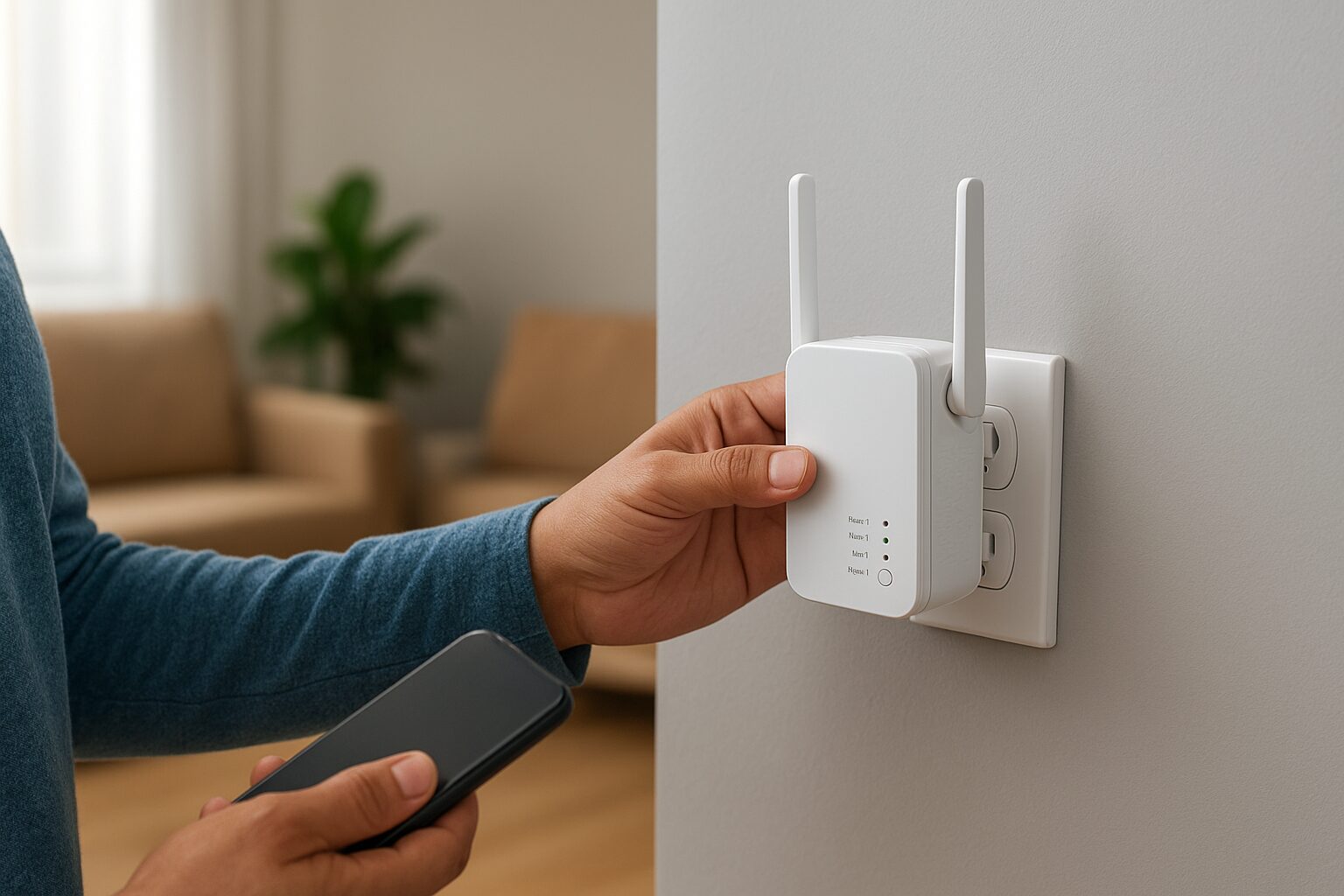
- Plug-in Extenders: Compact and easy to install directly into a wall socket—ideal for small homes.
- Desktop Extenders: Larger, more powerful, and perfect for big houses or offices.
2. Dual-Band vs. Tri-Band
- Dual-Band: Operates on both 2.4GHz and 5GHz frequencies, balancing speed and coverage.
- Tri-Band: Adds an extra 5GHz channel for improved speed and reduced congestion.
3. Mesh WiFi Systems as an Alternative
If you want seamless connectivity without switching networks, consider a mesh WiFi system. It replaces your router and uses multiple nodes around your home for consistent performance.
Step-by-Step Guide to Set Up a WiFi Extender
Setting up your WiFi extender is easier than you think. Just follow these simple steps.
1. Choose the Right Location
Place the extender midway between your router and the area with weak signal. Avoid thick walls and metal surfaces.
Tip: Use a WiFi analyzer app to check signal strength before placing your extender.
2. Plug In and Power On
Plug the device into a power outlet and wait for the power LED to turn solid green.
3. Connect to Your Existing WiFi Network
You have two main methods:
WPS (Wi-Fi Protected Setup) Method
- Press the WPS button on your router.
- Within 2 minutes, press the WPS button on your extender.
- Wait until the WPS LED lights up, confirming connection.
Web Browser Setup
- Connect your computer or phone to the extender’s temporary WiFi network.
- Open a browser and enter the setup address (often
192.168.0.1or provided in the manual). - Log in and follow the on-screen steps to connect to your home WiFi.
- Create a new network name (SSID) or keep the same one for seamless roaming.
Configure Network Settings
- Set your WiFi name and password.
- Ensure firmware is up-to-date.
- Adjust channel settings if interference is high.
5. Test Your Extended Network
After setup, test your connection:
- Use a speed test tool (like Speedtest.net).
- Walk around your home to ensure strong signal coverage.
Visual Data: WiFi Extender Usage & Signal Impact
| Factor | Without Extender | With Extender |
|---|---|---|
| Average Speed (Mbps) | 25 | 60 |
| Coverage Area (sq. ft.) | 1,000 | 2,500 |
| Connection Drop Rate | 18% | 4% |
| User Satisfaction | 62% | 91% |
This shows that a properly configured WiFi extender can double your effective coverage and significantly reduce connectivity drops.
Maximizing WiFi Extender Performance
To get the best performance from a WiFi extender, placement is key. Position the extender midway between your router and the area with weak signal, ensuring it still receives a strong connection from the main router. Avoid placing it near thick walls, metal objects, or electronic devices that can interfere with the signal. Using the same network name (SSID) as your router can help devices switch seamlessly between networks.
Regularly update the extender’s firmware to improve stability and security. Limiting the number of connected devices and choosing the optimal WiFi channel also enhances performance. By following these steps, you can extend coverage effectively and enjoy faster, more reliable connectivity throughout your home or office.
Common Setup Issues and How to Fix Them
Setting up a WiFi network or Piso WiFi system can sometimes be tricky, and several common issues may arise. One frequent problem is weak signal or dead zones, which can be fixed by repositioning the router, using a WiFi extender, or reducing physical obstructions. Incorrect login credentials or configuration errors can prevent devices from connecting; double-checking usernames, passwords, and network settings usually resolves this. Another issue is slow internet speeds, often caused by network congestion, outdated firmware, or interference from other devices.
Regularly updating your router, limiting the number of connected devices, and choosing the optimal WiFi channel can help. Finally, some users experience hardware malfunctions, which may require restarting the router, resetting it to factory settings, or replacing faulty components. Following these fixes ensures smoother setup and reliable connectivity.
Tips for Better WiFi Coverage
- Find the Ideal Placement – Centralize your extender to cover all corners of your home.
- Reduce Interference – Keep it away from appliances, metal objects, and thick walls.
- Regular Updates – Update firmware regularly for better security and performance.
- Consider Mesh Systems – If you have a large home, a mesh WiFi setup might be more efficient.
Frequently Asked Questions (FAQs)
- Can I use two WiFi extenders at once?
Yes, but place them strategically to avoid signal overlap. - Will a WiFi extender slow down my internet?
Slightly, but a quality dual-band or tri-band extender minimizes this effect. - What’s the difference between an extender and a booster?
They’re often used interchangeably, but a booster may include stronger hardware. - Do I need a separate password for the extender?
You can keep the same password as your router for easier roaming. - Can I use a WiFi extender with any router?
Yes, as long as both support the same WiFi standard. - Where is the best place to put my WiFi extender?
Midway between the router and the area with weak coverage. - How far can a WiFi extender reach?
Typically 1,500 to 2,500 square feet, depending on the model. - Can I connect a WiFi extender via Ethernet?
Yes, some models support Ethernet backhaul for more stability. - How often should I reboot my WiFi extender?
Once every few weeks helps maintain performance. - What’s the best WiFi extender brand?
Brands like TP-Link, Netgear, and Linksys are known for reliable performance.
Conclusion
Setting up a WiFi extender is one of the easiest and most affordable ways to improve your home’s internet coverage. By choosing the right model, following the setup steps, and maintaining it regularly, you can enjoy faster speeds and seamless browsing in every corner of your home.
Disclaimer
This article is for informational purposes only. Always refer to your device manufacturer’s manual for detailed installation and safety instructions. Results may vary depending on network conditions and home layout.