
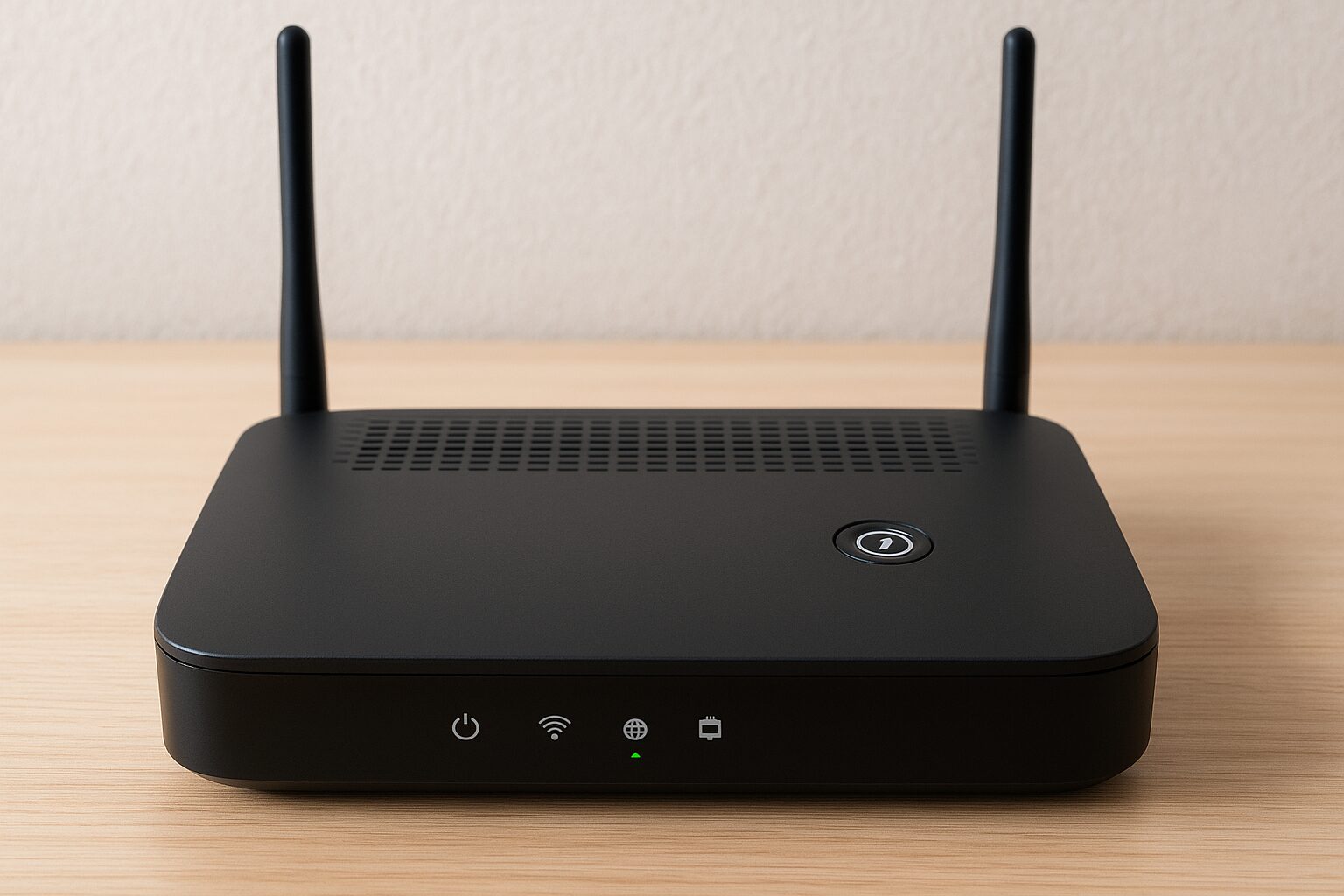
If you’ve ever taken a close look at your Wi-Fi router, you’ve probably noticed a small button labeled “WPS.” It might seem harmless — and in many ways, it is. The WPS button on router devices is designed to make connecting to your Wi-Fi network faster and easier.
Instead of typing a long and complicated password, you can simply press the WPS button on your router, and your device connects automatically. It’s simple, convenient, and perfect for non-techy users.
What Is the WPS Button on a Router?
The WPS button is found on most modern routers. It’s a feature that allows wireless devices to connect to your network without typing your password. The goal of WPS is simple: to simplify Wi-Fi setup for everyone, especially those who aren’t tech-savvy. Instead of memorizing complicated passwords or sharing them with guests, you can connect devices with a single press.
Here’s how it works in general:
- Press the WPS button on your router.
- Within two minutes, connect your device (like a printer or TV).
- The device joins your Wi-Fi automatically.
This saves time and avoids typing errors — but as you’ll see later, it also opens the door to some serious security problems.
When to Use WPS Safely
WPS can be used safely when you need a quick and temporary connection for trusted devices, such as printers or smart home gadgets, without sharing your main WiFi password. To minimize risks, only enable WPS briefly during setup, and disable it immediately afterward. Prefer the push-button method over the PIN method, as it is less vulnerable to hacking. Always ensure that only authorized users are near the router when using WPS, and combine it with a strong WPA2 or WPA3 password for ongoing network security. Using WPS cautiously allows convenience without compromising your WiFi safety.
How the WPS Button Works
The WPS process uses a simple handshake system between your router and device. Here’s how it works step-by-step:
- Press the WPS Button: Locate it on your router (usually on the back or side).
- Activate Connection on the Device: Go to the Wi-Fi settings of your laptop, printer, or smart TV, and choose the WPS option.
- Automatic Pairing: The device and router communicate directly. Within seconds, your device connects — no password needed.
There are two main types of WPS methods:
- Push-Button Connect (PBC):
The most common and easiest method. Just press the button on your router, then connect the device. - PIN Method:
Each router has an 8-digit PIN (often printed on the router label). The device enters this PIN to connect. Unfortunately, this method is the least secure because the PIN can be guessed or brute-forced.
Common router brands and where to find the WPS button:
- TP-Link: Back panel, often labeled “WPS/RESET”
- Netgear: Side or front
- Asus: Near the power button or antenna ports
How to Use WPS on Router
Using WPS on your router is simple and quick. First, make sure WPS is enabled in your router’s settings. Then, on the device you want to connect (like a smartphone, printer, or smart home gadget), select the option to connect via WPS. Press the WPS button on your router, usually labeled clearly on the device, and within a short time frame—usually 2 minutes—the device will automatically connect to your WiFi network without entering a password. For added security, disable WPS on the router once the connection is complete, and avoid using it in public or unsecured locations.
Benefits of Using WPS
Let’s be fair — WPS wasn’t created with bad intentions. It was meant to help everyday users set up Wi-Fi connections faster.
Here are a few advantages of WPS:
1. Easy for Non-Technical Users
If you struggle with tech, WPS saves you from typing long passwords. Just press and connect.
2. Faster Device Setup
Perfect for devices like smart TVs, Wi-Fi printers, and range extenders, where typing a password can be difficult.
3. Wide Compatibility
Many routers and smart home devices support WPS, making it useful in older households or offices.
4. No Password Hassle
It eliminates password errors — especially when sharing Wi-Fi with guests.
However, while these benefits are handy, they come at a cost — and that cost is security.
The Security Risks of WPS
Now for the downside. WPS might make life easier, but it also makes your network more vulnerable. Let’s explore why experts often recommend disabling WPS.
1. The WPS PIN Can Be Cracked
The biggest problem lies in the 8-digit WPS PIN. Because of how routers check it, hackers can guess it using brute-force software. It can take just a few hours for them to get into your network.
Once inside, they can:
- Access your internet connection
- Intercept your data
- Even attack other devices connected to your Wi-Fi
2. No Lockout After Failed Attempts
Most routers don’t block WPS after multiple incorrect attempts. This means hackers can keep guessing until they succeed.
3. Physical Access Exploit
If someone has access to your router, they can press the button and instantly connect a hidden device — without your knowledge.
4. Outdated Security Standard
WPS was introduced in 2007 — long before modern encryption like WPA3 was developed. It’s outdated and no longer considered secure by today’s standards.
Visual: Brute-Force Attack Success Rate
| Security Type | Vulnerability Level | Estimated Time to Crack |
|---|---|---|
| WPS (PIN Method) | High | Hours |
| WPA2 Password | Low | Months (with strong password) |
| WPA3 Encryption | Very Low | Nearly impossible |
Real-World Example:
In 2011, researchers discovered a flaw in WPS that allowed attackers to recover the router’s password within hours. Since then, many routers still have WPS enabled by default, leaving countless networks open to attack.
How to Check If WPS Is Enabled on Your Router
Want to see if your router has WPS turned on? Here’s how:
- Open Your Router’s Settings
- On your browser, type your router’s IP address (usually 192.168.0.1 or 192.168.1.1).
- Login
- Use your admin credentials (check the label on your router).
- Find the WPS Option
- Look under Wireless Settings or Advanced Setup.
- Check WPS Status
- You’ll see whether WPS is enabled or disabled.
Some routers also show a WPS indicator light — if it’s on, WPS is active.
How to Disable WPS for Better Security
If you care about privacy and data protection, the best move is to turn off WPS entirely.
Here’s a simple guide:
- Log in to your router’s admin panel.
- Go to Wireless Settings > WPS Configuration.
- Find the option that says Enable WPS.
- Switch it Off or Disable.
- Save your settings and restart your router.
Extra Step: Strengthen Your Wi-Fi Security
After disabling WPS, make sure your router uses:
- WPA2-Personal (AES) or WPA3 encryption.
- A strong, unique password (mix of letters, numbers, and symbols).
Alternatives to Using WPS
Disabling WPS doesn’t mean connecting devices becomes hard. You still have safe and easy options.
1. Manual Wi-Fi Setup
Enter your Wi-Fi name and password manually. It takes a few seconds and offers much better protection.
2. QR Code Connection
Many routers let you connect devices by scanning a QR code. This is quick, secure, and doesn’t expose your password.
3. Guest Networks
Create a separate Wi-Fi network for visitors. This keeps your main devices (like laptops and smart appliances) isolated and safe.
4. Smart Home Apps
Most smart devices today use their own apps for setup (e.g., Alexa, Google Home, TP-Link Tapo). These apps use secure pairing methods, not WPS.
Should You Use the WPS Button?
Let’s look at the pros and cons side-by-side:
| Pros | Cons |
|---|---|
| Easy setup for devices | Risk of hacking via WPS PIN |
| Great for non-tech users | No lockout against brute-force |
| Works on older devices | Not supported on WPA3 routers |
| Quick connection | Physical access vulnerability |
Recommendation
If security matters to you — and it should — disable WPS. It’s better to spend a few extra seconds entering your password than risk having strangers access your Wi-Fi. For businesses and families, this is even more important. Data breaches and unauthorized access can expose sensitive information.
Conclusion
The WPS button on your router was designed to make Wi-Fi setup easier — and it does that well. But as technology evolved, its weaknesses became more obvious. Today, with stronger encryption standards like WPA3, the WPS feature feels outdated and unsafe. If you haven’t already, turn it off and use manual or QR-based connections instead. It’s a small step that can make a big difference in keeping your Wi-Fi safe.
FAQs
1. What does the WPS button do on my router?
It lets you connect devices to your Wi-Fi without typing a password. Just press the button and your device connects automatically.
2. Is it safe to press the WPS button?
Not really. While it’s convenient, WPS can be exploited by hackers. It’s better to disable it.
3. How do I turn off WPS on my router?
Log into your router’s admin panel, go to Wireless Settings > WPS, and toggle it off.
4. Can hackers use WPS to access my Wi-Fi?
Yes. The WPS PIN can be brute-forced, allowing attackers to connect without knowing your real password.
5. What’s the difference between WPS and WPA3?
WPS is a setup method; WPA3 is a security standard. WPA3 is far safer and more modern.
6. Does every router have a WPS button?
Most older routers do, but many new ones (especially WPA3 routers) have removed it.
7. Is WPS available on mesh Wi-Fi systems?
Some older mesh systems support WPS, but newer ones rely on app-based setups instead.
8. Can I connect my phone or printer without WPS?
Yes. You can connect manually or use a QR code to join your Wi-Fi securely.
Disclaimer
This article is for educational purposes only. Security risks may vary depending on your router brand, model, and firmware version. Always check your router’s manual or manufacturer’s website before changing settings.